Getting started
You got a username and password. Here’s all there is to it.
If someone gave you a username and password
Step 1: Open i2w2i
Tap the link in their message, or type i2w2i.com into your phone’s browser.
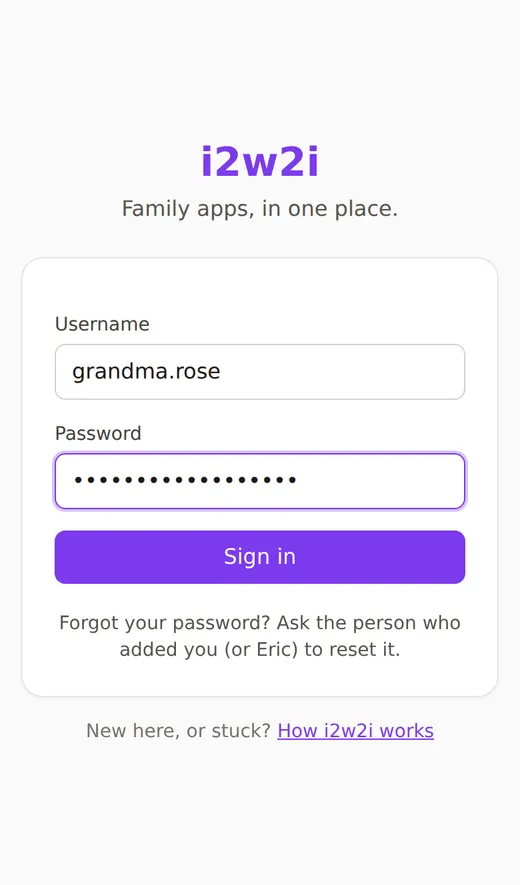
Type your username and password exactly as you were given them, then tap Sign in.
Step 2: You’re in
You land on the event’s album. You stay signed in on this phone, so you won’t need the password again here.
Want a password you’ll remember? Change it on your account page (tap your name at the top).
Step 3: Look, and add your own
Tap any photo to see it big. Swipe, or tap the arrows at the sides, for the next one, and ✕ to go back.
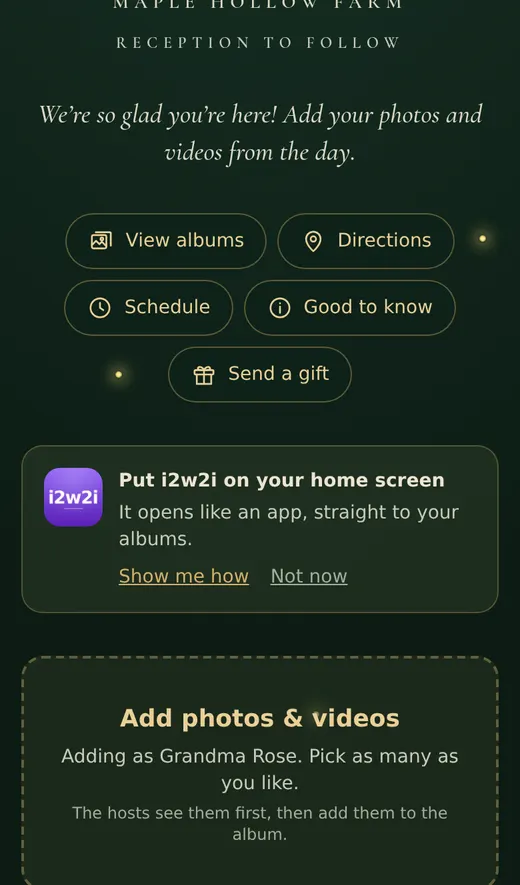
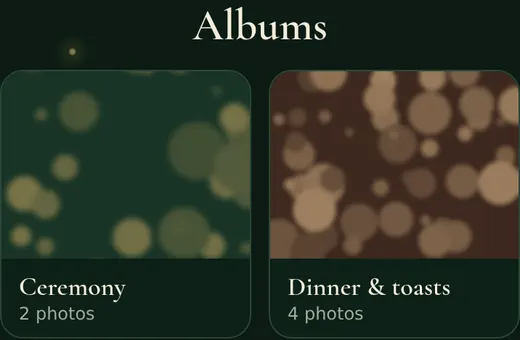
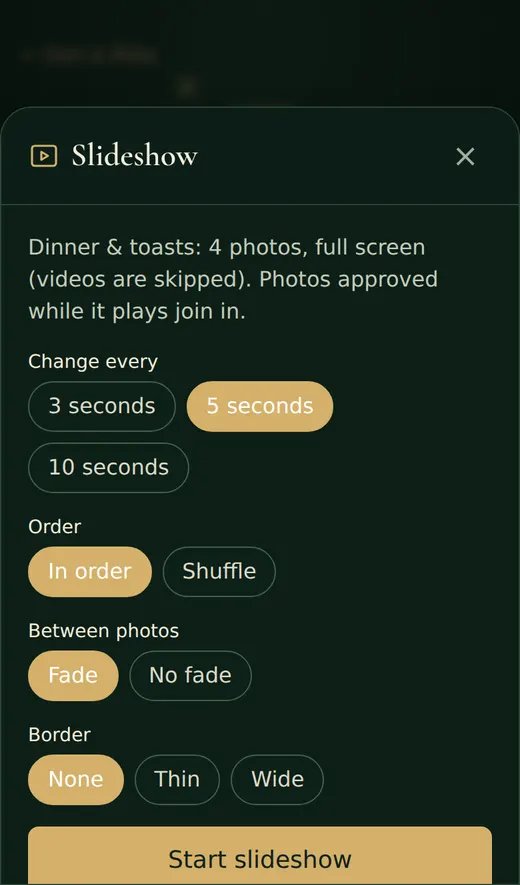
If the hosts have made albums (Ceremony, Reception…), tap View albums at the top to look through one part of the day at a time. All photos has everything. Slideshow plays them full screen; tap the screen to stop.
To add yours, tap Add photos & videos and choose as many as you like. They say Waiting until one of the hosts adds them to the album.

Step 4: Coming back later
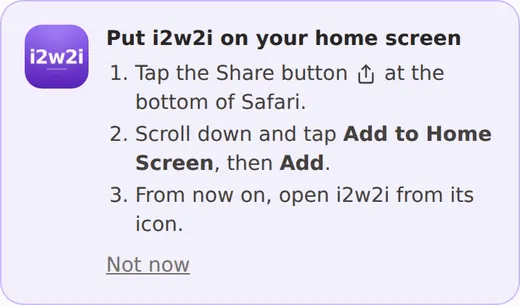
You stay signed in on your phone. To find i2w2i again with one tap, put it on your home screen once. Your home page shows a card that walks you through it:
- iPhone: in Safari, tap the Share button (the square with an arrow), then Add to Home Screen.
- Android: tap Add to home screen on the card, or the three dots ⋮ and then Add to Home screen.
The new i2w2i icon opens straight to your own page: your events, family albums and any other family apps you’ve been given. The first time, it may ask you to sign in: use the same username and password.
If you scanned a card at a party
No account and no password: just your name.
Step 1: Scan, and type your name
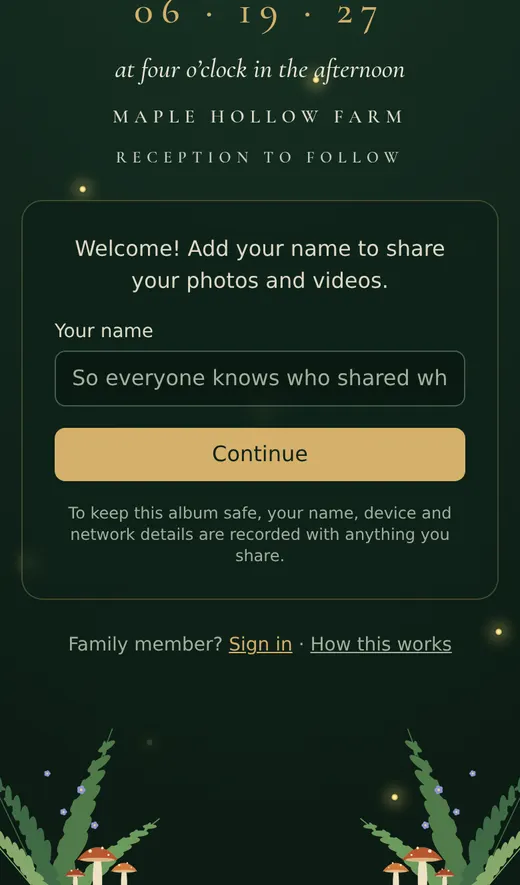
Point your phone’s camera at the square on the card and tap the link that appears. The event’s page opens. Type your name and tap Continue.
The page tells you that your name, device and network details are recorded with what you share, so the hosts know who added what.
Step 2: Add your photos and videos
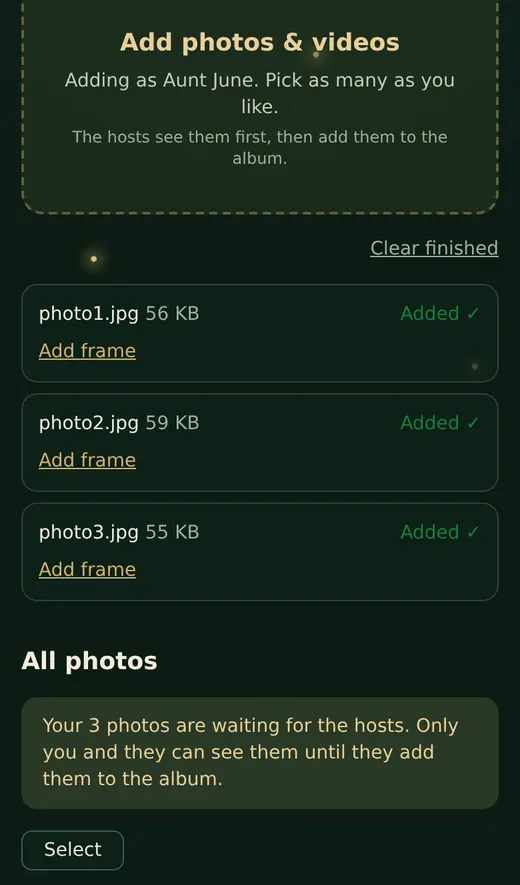
Tap Add photos & videos and pick as many as you like. Big videos are fine.
Switched apps or lost signal? They pause and carry on when you come back to the page.
Your photos show straight away, marked Waiting. Until a host approves them, only you and the hosts can see them.
Signing in again
On a new phone or computer
Go to i2w2i.com, type your username and password, and tap Sign in.
Forgot your password? Ask the person who added you (or Eric) to reset it. They’ll give you a new one; nothing is emailed.
Your account page (tap your name at the top) is where you change your name, username or password, turn on notifications, or sign out of a phone you no longer have.